Rewarding community loyalty on Twitch
Moobot can reward community loyalty throughout its features. This can motivate your viewers, but also help you moderate your community on Twitch.
Moobot will watch your community members and see how long they have been watching your stream. You can then adjust Moobot's behavior to reward your loyal community members and be extra wary of viewers who are not part of your community.
Follow these steps to enable the Community Loyalty feature:
- Open up the
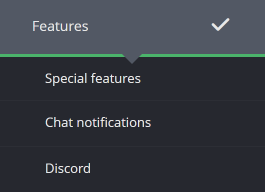
«Features»menu from the main menu, then open the«Special features»menu from there.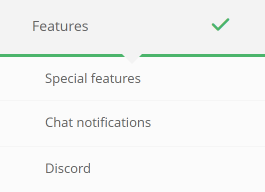
- While in the
«Special features»menu, find the«Community loyalty»feature and activate the toggle to the right-hand side of the feature.

- Grant the requirements for the feature through the separate menu.
- It's now set up, and you can start using the loyalty functionality built into Moobot's various features.


Uses for community loyalty
You can use community loyalty as a reward and an incentive, but it can also help you and your Twitch mods determine whether a viewer is part of your community.
This can better help you determine if someone is a troll, a spam bot, or just someone new to your community.
Moobot can help you by using loyalty in several ways:
- Doing giveaways only for your actual Twitch community
- Accepting Song Requests only from members of your Twitch community
- Giving extra votes in your polls to your loyal community members
With Moobot seeing who is watching your stream, you can also:
Types of watch time Moobot can use
Moobot keeps several separate types of watch time for your viewers, which you can pick and choose from when using the Community Loyalty feature.
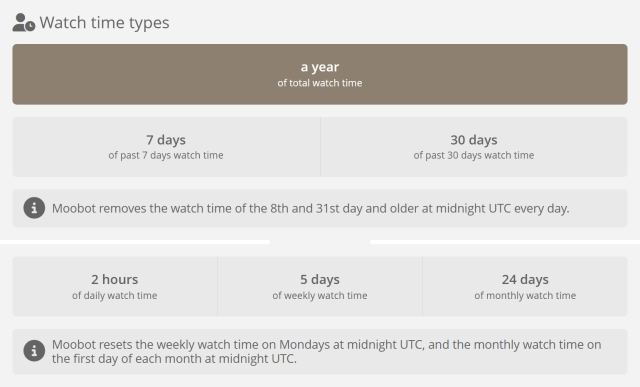
- Total watch time: The total amount of time a viewer has watched your stream since you started using Moobot.
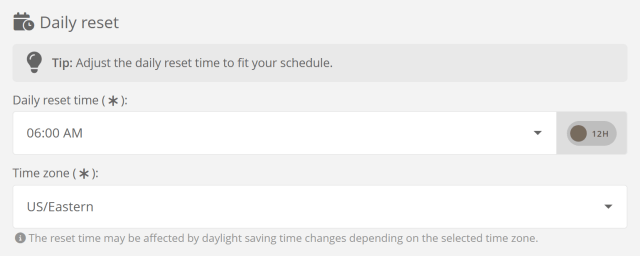
- Daily watch time: The total amount of time a viewer has watched your stream since the last daily reset. The daily reset time can be customized in the settings menu for the Community Loyalty feature.
- Weekly watch time: The total amount of time a viewer has watched your stream since the last weekly reset. The weekly reset happens every Monday at 00:00 UTC.
- Monthly watch time: The total amount of time a viewer has watched your stream since the last monthly reset. The monthly reset happens on the first day of every month at 00:00 UTC.
- Past 7 days watch time: The total amount of time a viewer has watched your stream in the past 7 days. The 8th day and older is not counted from 00:00 UTC.
- Past 30 days watch time: The total amount of time a viewer has watched your stream in the past 30 days. The 31st day and older is not counted from 00:00 UTC.
Doing giveaways only for your actual Twitch community
Sometimes doing a giveaway can drive a crowd to your stream who are only there for the giveaway itself, and once it's over, they leave.
This may not seem like such an awful thing if you think this crowd somehow benefits you in follows and views, but experience shows that this crowd has very little benefit to you, and next to no benefit to your community.
This is where community loyalty can help you filter out this crowd, allowing only your actual community members to enter the giveaway.
When someone who you've frequently seen around in your Twitch chat wins the giveaway, it gives a much better feeling than if some random giveaway bot won.
Only allowing your actual Twitch community to enter your giveaways
Here's how you make your giveaways only accept entries from your actual community members:
- While making your giveaway, make sure you can adjust the advanced options for your giveaway by activating the
«Show advanced options»checkbox at the bottom of the menu.

- Adjust who can enter your giveaway in the
«Participation»section, setting the«Who can participate in this giveaway»option to«Only those who have watched the stream for a minimum amount of time can participate».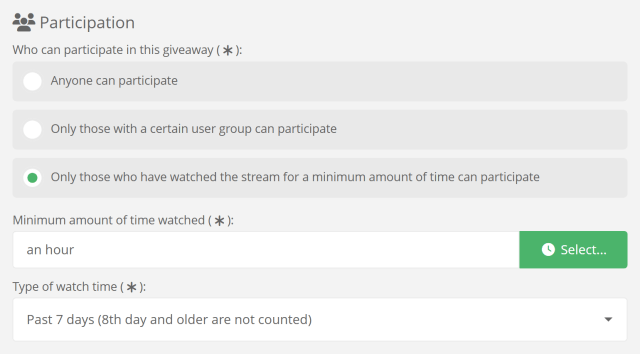
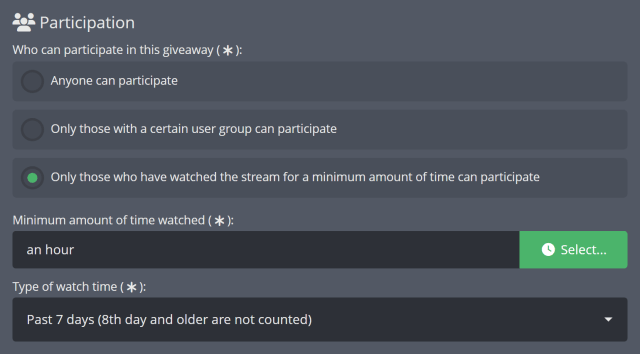
- Adjust the minimum amount of minutes watched in the
«Minimum amount of time watched»input to what fits for this specific giveaway and your community. - (Optional) Choose the type of watch time Moobot will use by selecting it in the
«Type of watch time»dropdown. This allows you to restrict entry to the giveaway to only viewers who have watched your stream in the past month, week, or day. - Run your giveaway, where only your community members with the required minimum amount of time watched can take part.
Giving loyal community members additional chances to win your giveaways
By combining the loyalty and giveaways functionality of your Moobot, you're able to give your community additional chances to win your giveaways based on how long they have been watching your stream.
In the following example, we will set up additional chances to win for anyone who has watched your stream for over 10 hours:
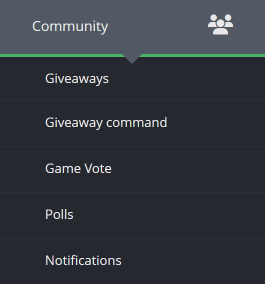
- Open up the
«Community»menu from the main menu, then open the«Giveaways»menu from there.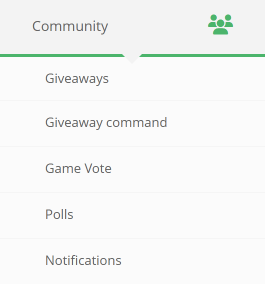
- Click the
«Create giveaway»button at the bottom of the menu. - Drag the
«Viewers with a minimum watch time have one chance to be drawn»slider in the«Multipliers»section to change the multiplier.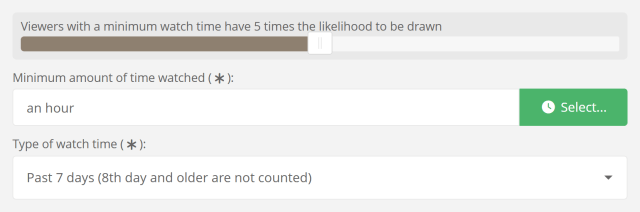
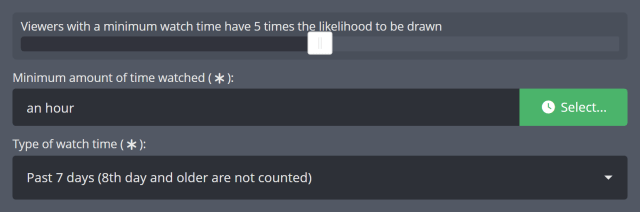
- Adjust the minimum amount of minutes watched in the
«Minimum amount of time watched»input to what fits for this specific giveaway and your community. - (Optional) Choose the type of watch time Moobot will use by selecting it in the
«Type of watch time»dropdown. This allows you to restrict the additional chances to win to only viewers who have watched your stream in the past month, week, or day. - Create the giveaway.
Any of your community members who have watched the stream for your set hours will now be given additional chances to win the giveaway.
Accepting Song Requests only from members of your Twitch community
Doing Song Requests can sometimes be difficult, as some of your viewers may not have the same taste in music as you, and sometimes you may even get the occasional viewer who goes from channel to channel just to add troll requests.
Only accepting Song Requests from loyal community members may help you combat these problems, and may also reward and increase loyalty in your community.
Here's how you can make it so only members of your community may request songs:
- Open up the
«Features»menu from the main menu, then open the«Special features»menu from there. - While in the
«Special features»menu, find the«Song Requests»feature and use the«Options»button at the right-hand side of the feature to drop down its menu. In the drop-down menu, select the«Settings»option, which will open up the settings menu for the feature. - Scroll down the menu and activate the
«Only accept requests from users who have watched a minimum amount of time»checkbox.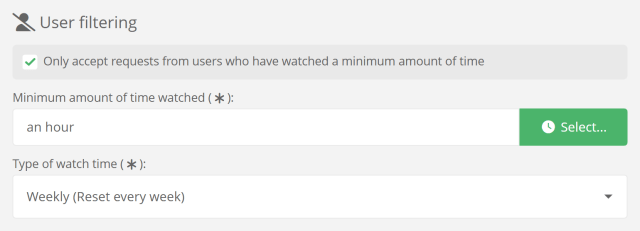
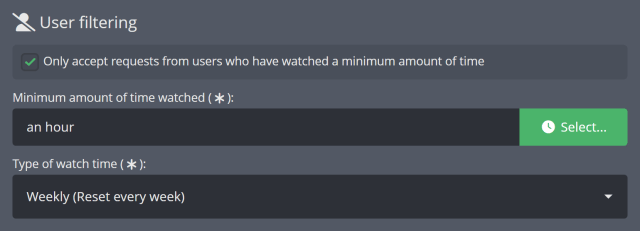
- Adjust the minimum amount of minutes a viewer has to have watched your stream before they may request a song in the
«Minimum amount of time watched»input. - (Optional) Choose the type of watch time Moobot will use by selecting it in the
«Type of watch time»dropdown. This allows you to only accept song requests from viewers who have watched your stream in the past month, week, or day. - Click the
«Save»button at the bottom of the menu to save the settings.
Doing polls only for your actual Twitch community
Only allowing your actual Twitch community to vote in your polls
Here's how you make your polls only accept votes from your actual community members:
- While making your poll, make sure you can adjust the advanced options for your poll by activating the
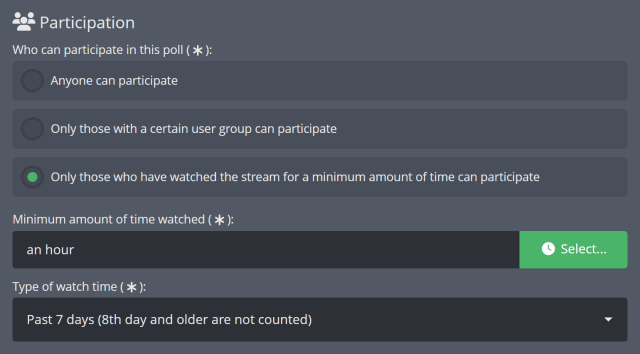
«Show advanced options»checkbox at the bottom of the menu. - Adjust who can enter your poll in the
«Participation»section, setting the«Who can participate in this poll»option to«Only those who have watched the stream for a minimum amount of time can participate».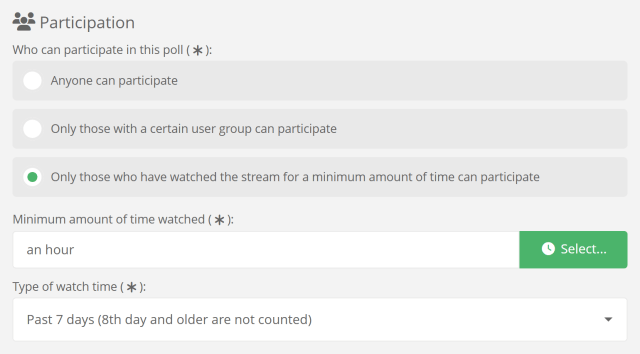
- Adjust the minimum amount of minutes watched in the
«Minimum amount of time watched»input to what fits for this specific poll and your community. - (Optional) Choose the type of watch time Moobot will use by selecting it in the
«Type of watch time»dropdown. This allows you to restrict votes to only viewers who have watched your stream in the past month, week, or day. - Run your poll, where only your community members with the required minimum amount of time watched can vote.
Giving extra votes in your polls to your loyal community members
While your polls rarely get the same amount of bots and undesirable entrants as your giveaways, you can still reward loyalty by giving extra votes in your polls to your loyal community members.
In the following example, we will give extra votes to anyone who has watched your stream for over 10 hours:
- Open up the
«Community»menu from the main menu, then open the«Polls»menu from there. - Click the
«Create poll»button at the bottom of the menu. - Drag the
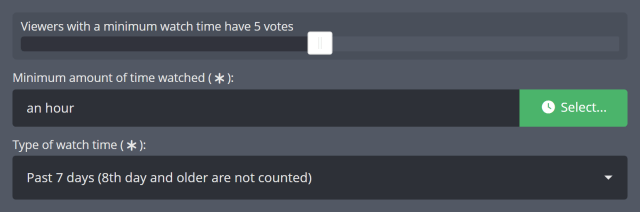
«Viewers with a minimum watch time have one vote»slider in the«Multipliers»section to change the multiplier.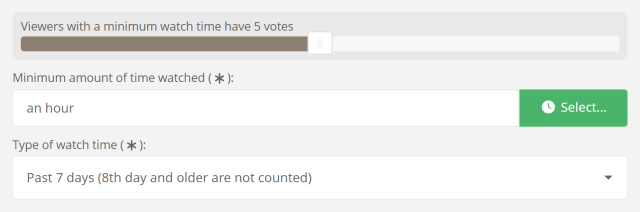
- Adjust the minimum amount of minutes watched in the
«Minimum amount of time watched»input to what fits for this specific poll and your community. - (Optional) Choose the type of watch time Moobot will use by selecting it in the
«Type of watch time»dropdown. This allows you to restrict the additional votes to only viewers who have watched your stream in the past month, week, or day. - Create the poll.
Any of your community members who have watched the stream for your specified amount of time will now have their vote count multiple times in your poll.
Hosting game voting events for your Twitch community
Only allowing your actual Twitch community to vote for games to play
Here's how you make your Game Vote events only accept votes from your actual community members:
- While adjusting the settings of your Game Vote, find the
«Participation»section and activate the«Only those who have watched the stream for a minimum amount of time can use the command»checkbox.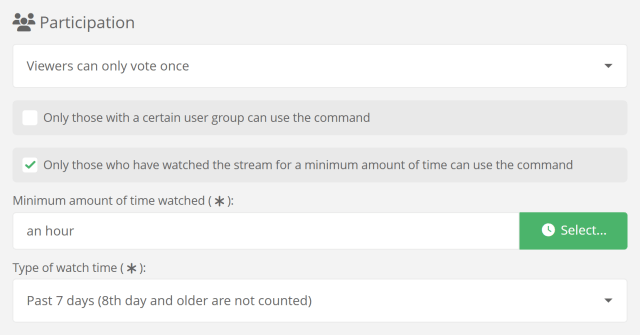
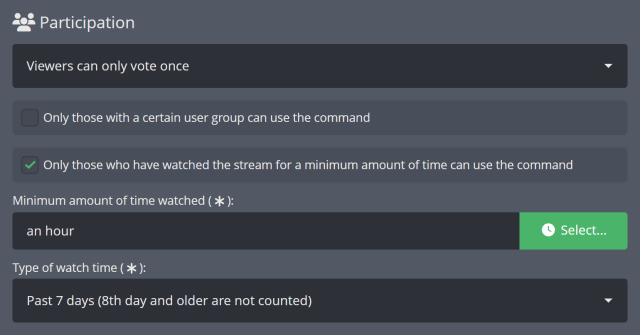
- Adjust the minimum amount of minutes watched in the
«Minimum amount of time watched»input to what fits for your community. - (Optional) Choose the type of watch time Moobot will use by selecting it in the
«Type of watch time»dropdown. This allows you to restrict votes to only viewers who have watched your stream in the past month, week, or day. - Save the settings at the bottom of the menu.
- Run your Game Vote, where only your community members with the required minimum amount of time watched can vote for games to play.
Giving extra votes in your game voting events to your loyal community members
By combining the loyalty and Game Vote functionality of your Moobot, you're able to give your community additional votes based on how long they have been watching your stream.
Follow these steps to give extra votes in your Game Vote events to your loyal community members:
- While adjusting the settings of your Game Vote, find the
«Multipliers»section of the settings. - Drag the
«Viewers with a minimum watch time's vote counts as one vote»slider in the«Multipliers»section to change the multiplier.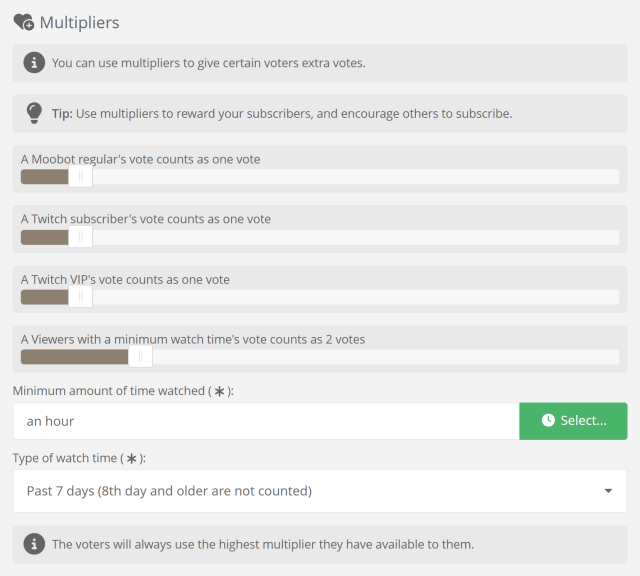
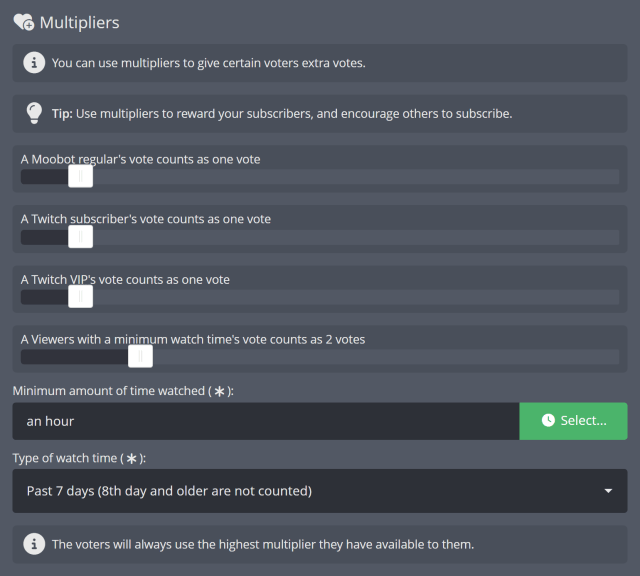
- Adjust the minimum amount of minutes watched in the
«Minimum amount of time watched»input to what fits for this specific Game Vote and your community. - (Optional) Choose the type of watch time Moobot will use by selecting it in the
«Type of watch time»dropdown. This allows you to restrict the additional votes to only viewers who have watched your stream in the past month, week, or day.
Any of your community members who have watched the stream for your specified amount of time will now have their vote count multiple times in your game voting events.
Seeing how long you've been watching someone on Twitch
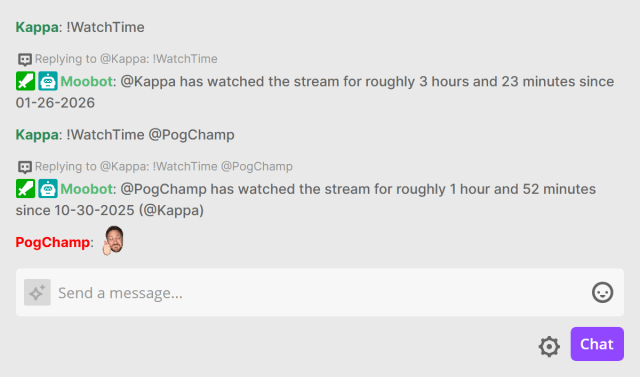
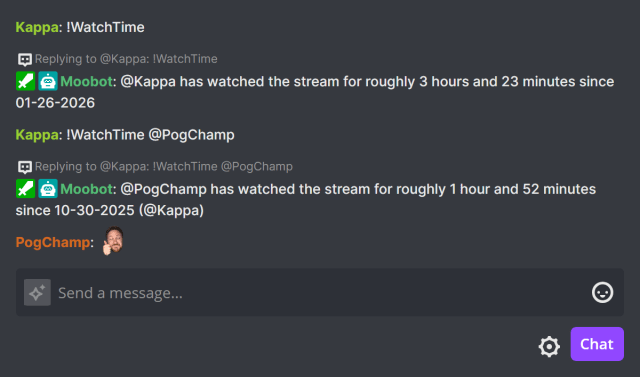
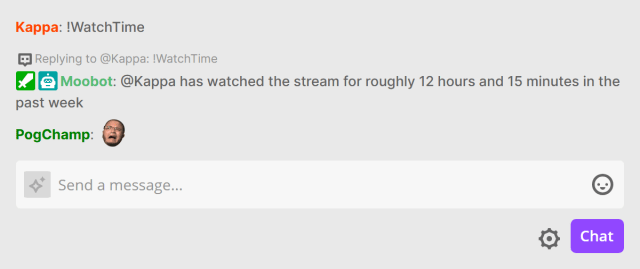
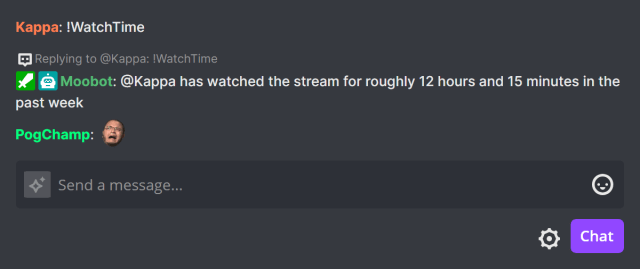
The «!WatchTime» chat command lets your viewers see how long they've been watching your stream on Twitch, and can be enabled from the built-in commands menu.
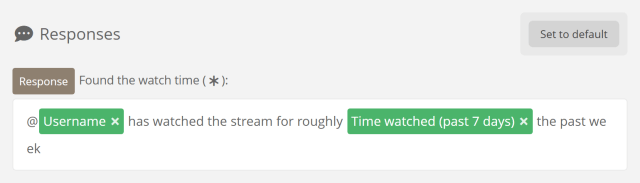
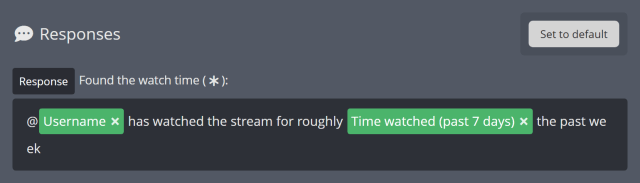
You can change the type of watch time Moobot will use for the «!WatchTime» chat command by adjusting the command's responses.
Looking up when someone was last seen in Twitch chat
The «!LastSeen» chat command lets your viewers and Twitch mods look up how long ago someone was last seen in your chat.
You can use the chat command in Twitch chat like «!LastSeen username», where «username» is the Twitch username you want to look up.
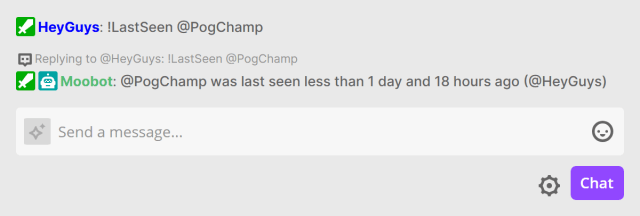
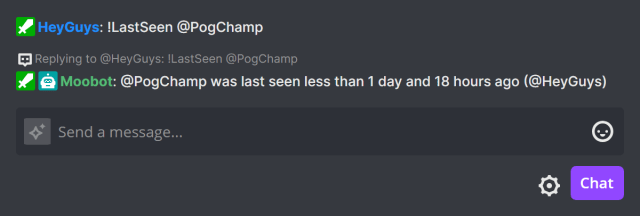
The chat command is part of the Community Loyalty feature and you can enable it from the built-in commands menu.
Seeing when your Moobot editors were last seen in Twitch chat
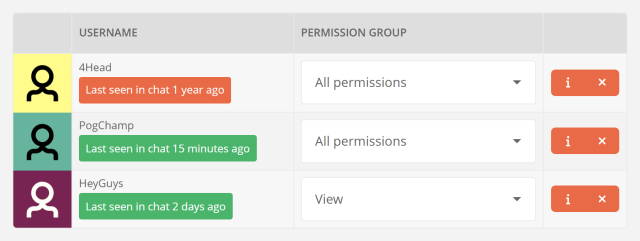
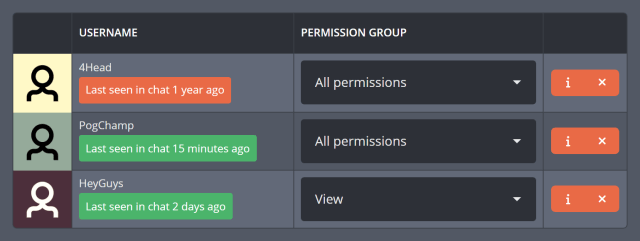
The Community Loyalty feature lets you see the time since each of your Moobot editors were last seen in your Twitch chat.
This can give you a quick overview of whether they are still active in your community.