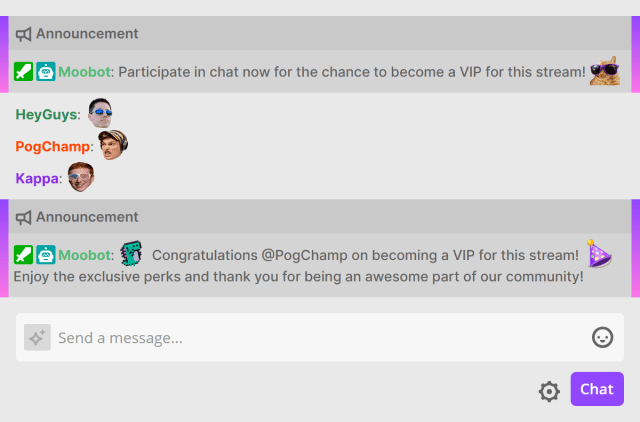
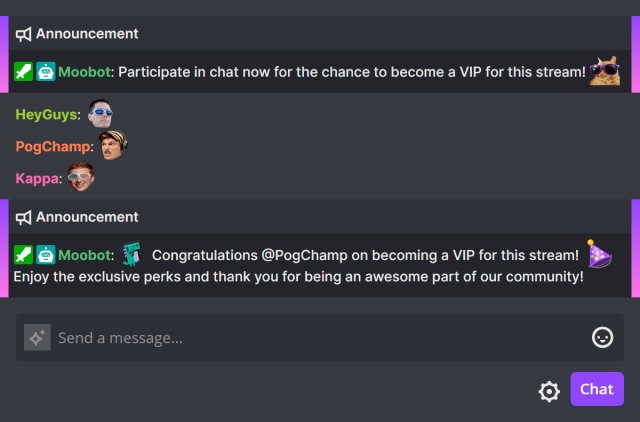
Adding temporary Twitch VIPs
Moobot can manage your VIPs on Twitch for you, allowing you and your moderators to easily add and remove VIPs, both temporarily and permanently.
VIPs can be added to your channel by using the «!AddVip» command in Twitch chat, or by using the Moobot dashboard.
An expiration time can be set for temporary VIPs, after which Moobot automatically removes them from your channel. This is useful for events, giveaways, or any situation where you want to grant VIP status for a limited time.
With Moobot's permission functionality, you can restrict which of your moderators can manage your VIPs, giving you full control over your channel's VIP management.
Moobot tightly integrates Twitch VIPs with its other features, allowing you to create special interactions for your VIPs, such as exclusive chat commands, giveaways, polls, song requests, and game votes.
Follow these steps to add a VIP to your channel:
- Open the
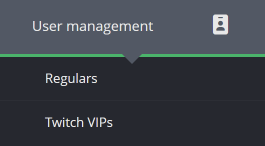
«User management»menu from the main menu, then open the«Twitch VIPs»menu.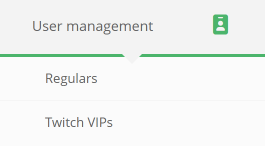
- Find the
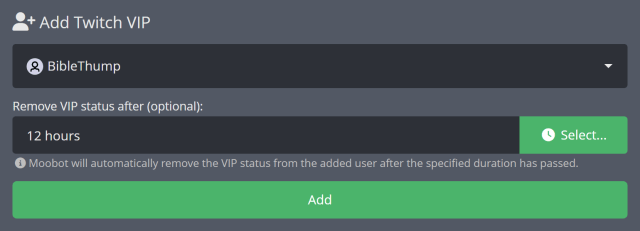
«Add Twitch VIP»section of the menu, then search for and select a user in the«Select a user»input.

- (Optional) Set an expiration time for the VIP in the
«Select duration»input to add them temporarily. Leaving this blank adds the VIP permanently.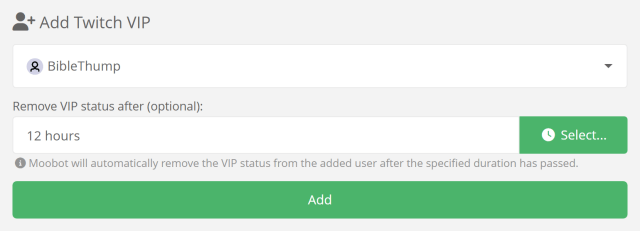
- Click the
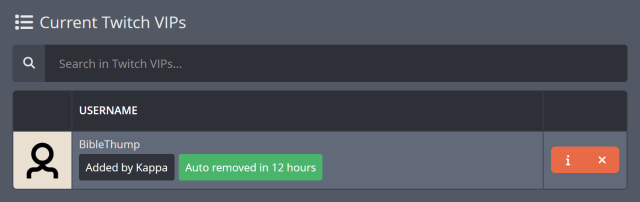
«Add»button to add the VIP to your channel.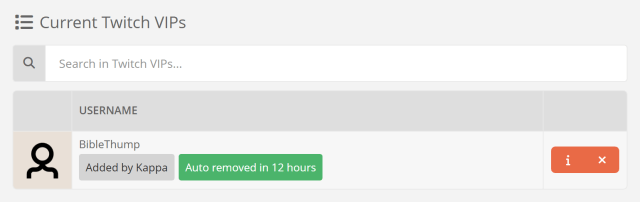
Adding a Twitch VIP via Twitch chat
You and your moderators can also add a VIP to your channel by using the «!AddVip» command in Twitch chat.
Follow these steps to set up the «!AddVip» command:
- Open the
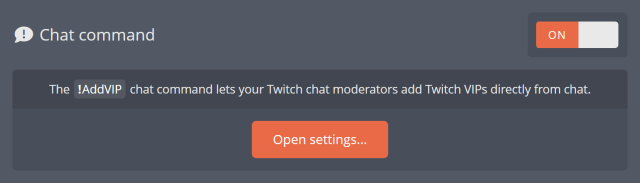
«User management»menu from the main menu, then open the«Twitch VIPs»menu. - Activate the chat command in the
«Chat command»section of the menu.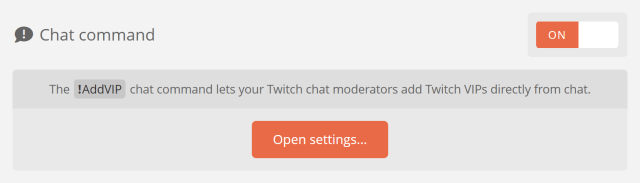
- Open the settings of the
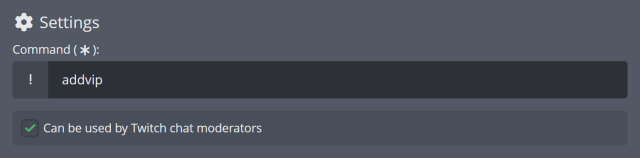
«!AddVip»command by clicking the«Open settings»button. - Adjust the settings and responses of the chat command to your liking. Make sure to activate the
«Can be used by Twitch chat moderators»checkbox if you want your moderators to use the command.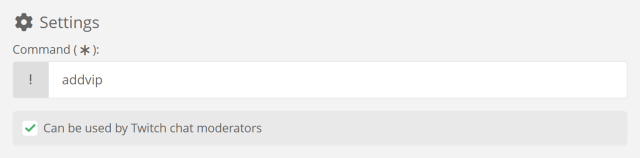
- Click the
«Save»button to save your changes.
The chat command can now be used in Twitch chat like «!AddVip username» to add a VIP to your channel.
Adding a temporary VIP via Twitch chat
Moobot can automatically remove VIPs after a set amount of time.
To add a temporary VIP via Twitch chat, adjust the «Automatic removal» options in the «!AddVip» command's settings menu.
Follow these steps to set up automatic removal of VIPs:
- Open the
«User management»menu from the main menu, then open the«Twitch VIPs»menu. - Open the settings of the
«!AddVip»command by clicking the«Open settings»button. - Activate the
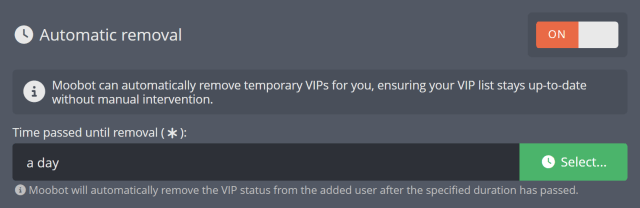
«Automatic removal»toggle to enable automatic removal of VIPs after a set amount of time. - Set the desired duration for the VIP status in the
«Time passed until removal»input.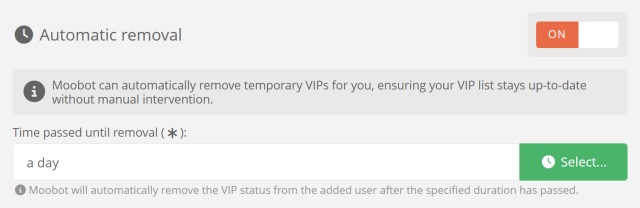
- Click the
«Save»button to save your changes.
Any VIPs added via the «!AddVip» command in Twitch chat will now be automatically removed after the set duration has passed.
Uses for Twitch VIP status
Moobot tightly integrates Twitch VIPs with its other features, allowing you to further enhance your channel's experience for your VIPs.
Here are some ways you can enhance Twitch VIP status with Moobot:
- VIPs can have their own exclusive chat commands, allowing you to create special interactions for them.
- VIPs can be given exclusive access to your channel's giveaways.
- VIPs can get extra entries in your channel's giveaways, giving them a better chance of winning.
- VIPs can be given exclusive access to your channel's polls.
- VIPs can get extra votes in your channel's polls, giving them a bigger say in the results.
- VIPs can be given exclusive access to request songs for your stream.
- VIPs can get extra song requests for your stream, allowing them to request more songs than other viewers.
- VIPs can be given exclusive access to vote for your stream's next game.
- VIPs can get extra votes for your stream's next game, allowing them to have a bigger say in what you play next.
Giving early Twitch viewers a chance to become a VIP
To motivate your viewers to show up early for your stream, you can offer them the chance to become a VIP by showing up during the initial minutes of going live.
This not only rewards your most loyal viewers but also helps your stream rise faster in the Twitch directory.
By using Moobot's First Wave VIP feature, Moobot randomly selects one lucky early viewer who actively participates in your chat during the initial minutes of your stream and automatically grants them VIP status, complete with a special chat badge.
After your stream is over, Moobot automatically removes the VIP status granted to the viewer, allowing you to reward a new viewer with VIP status the next time you go live.