Banning, blocking and flagging large numbers of Twitch users
Moobot's batch tool allows you to ban, block, or flag large numbers of Twitch users at once without having to manually type each username into your Twitch chat.
Large lists of Twitch users can be directly imported into the batch tool, and Moobot will automatically ban, block, or flag each user in the list.
Moobot also keeps track of all users who have been processed by the batch tool and displays useful information about each user so that you can make informed decisions about whether the action performed was appropriate.
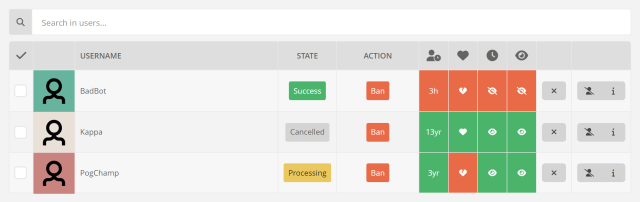
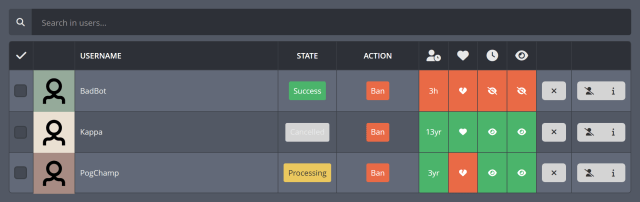
Moobot can perform the following actions on large lists of Twitch users:
- Ban or unban users from your Twitch chat.
- Block or unblock users from your Twitch chat, which prevents them from viewing and following your Twitch channel.
- Flag or unflag users as suspicious, allowing you to restrict or monitor their activity in your Twitch chat.
Creating a large list of Twitch users to ban, block or flag
Follow these steps to create a large list of Twitch users to ban, block, or flag in your Twitch chat:
- Open the
«Tools»menu from the main menu, then select«Batch tool».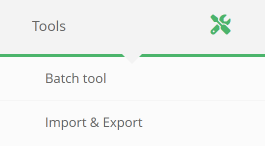
- Click the
«Create new actions»button in the menu.

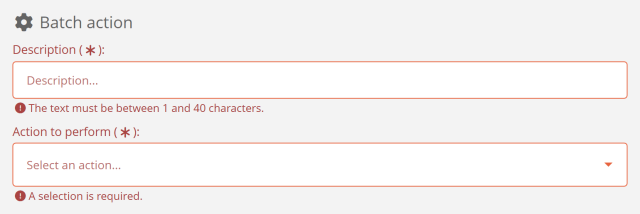
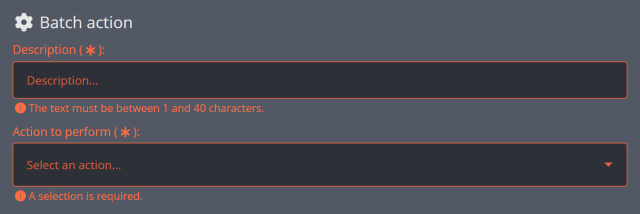
- Add a description for your list of Twitch users, then select the action to take on the users in the list.
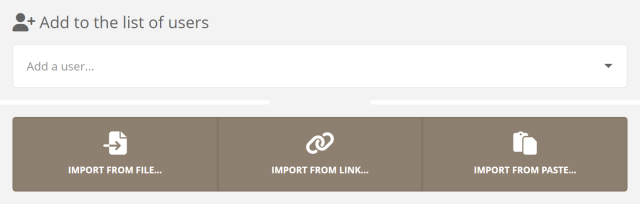
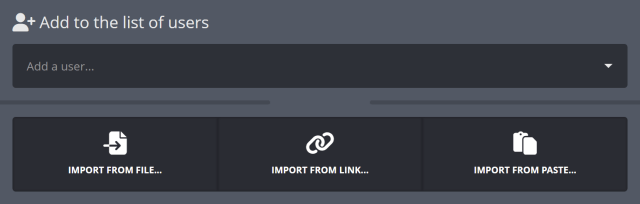
- Select the Twitch usernames you want to include in the list. You can add the usernames directly from the dropdown, import them from a file or link, or paste them in.
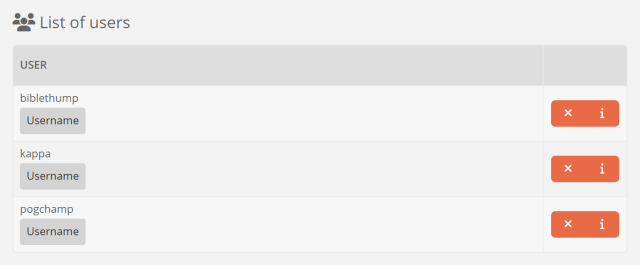
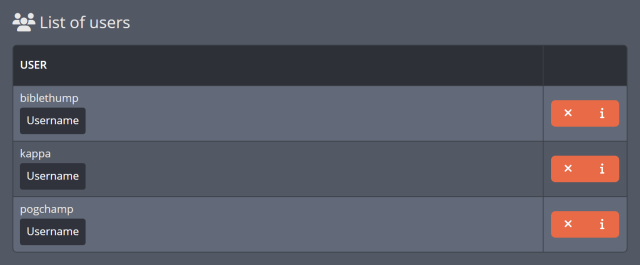
- Your list of users will be displayed at the bottom of the menu, where you can review the users and make any necessary changes. You can also remove users from the list.
- Click
«Continue»at the bottom of the menu to proceed.

- (Optional) Click the
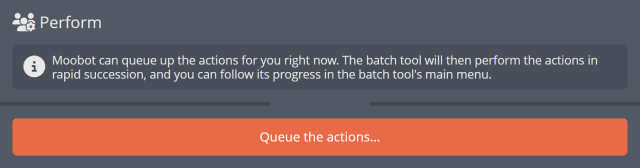
«Queue the actions»button to have the batch tool process your list on your current dashboard.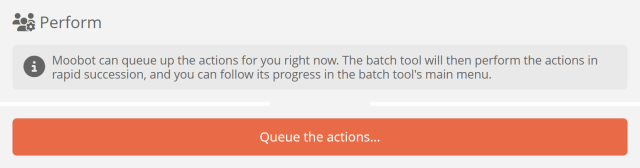
- (Optional) Export the list of users to a file so you can import it into another dashboard where you are an editor.
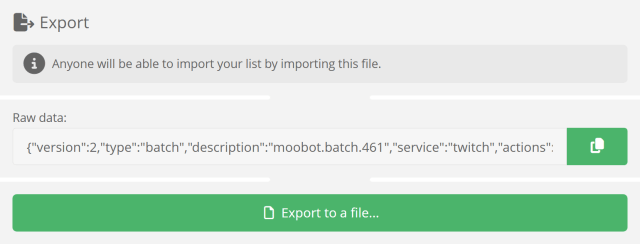
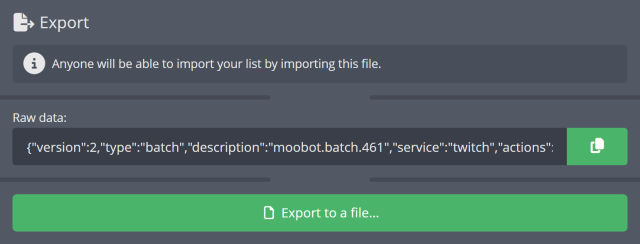
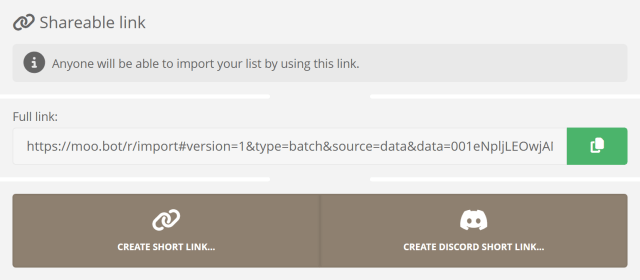
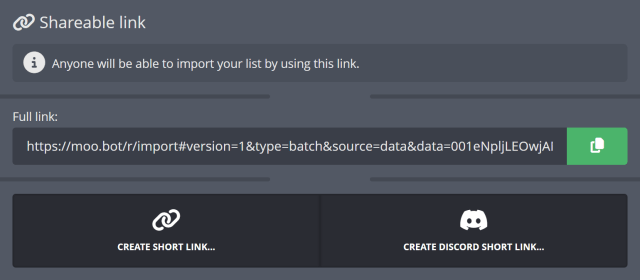
- (Optional) Copy the link or create a shortlink for your list of users so you can easily share it with others.
- Finish the process by clicking the
«Complete»button at the bottom of the menu, which returns you to the main batch tool menu.
If you choose to queue the actions on your current dashboard, continue to review the users who have been banned, blocked, or flagged to see the results of the batch tool.
Reviewing your banned, blocked or flagged users
All actions performed by the batch tool are logged and listed in the main batch tool menu, where you can review the users who have been banned, blocked, or flagged.
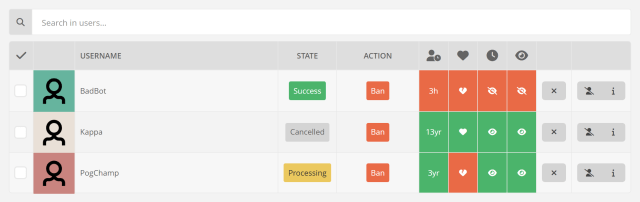
Reviewing the processed users allows you to see:
- The current status of the action performed on the user, including whether it succeeded or failed.
- Whether the user follows you on Twitch, and how long they have been following you.
- The user's account creation date, which can help you determine whether the account is new or established.
- How long the user has been watching you on Twitch.
- The date the user was first seen in your Twitch chat.
This information can help you determine whether the action performed was appropriate, and whether you want to keep the user banned, blocked, or flagged.
Follow these steps to review the users who have been banned, blocked, or flagged by the batch tool:
- Open the
«Tools»menu from the main menu, then select«Batch tool». - Find the list of actions in the
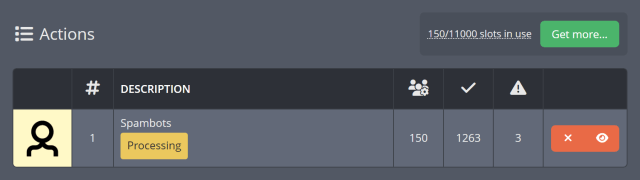
«Actions»section of the menu, and click the«View details»button for the list you want to review.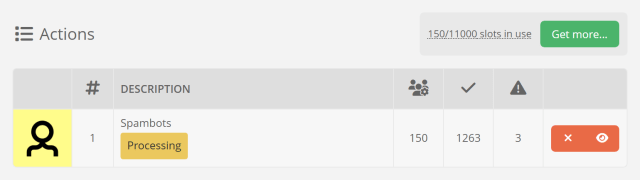
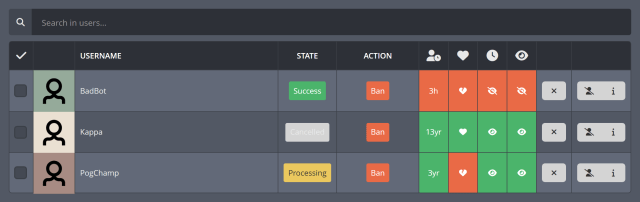
- The users will be displayed at the bottom of the menu, where you can review their information.
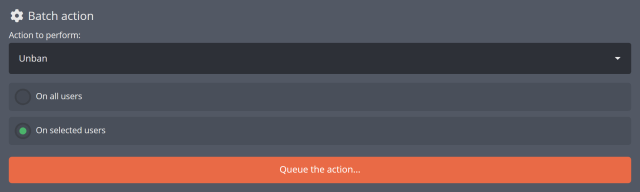
- Make any necessary changes by selecting a new action from the
«Action to perform»dropdown in the«Batch action»section of the menu. Then, choose whether to perform the action on all users or only selected users.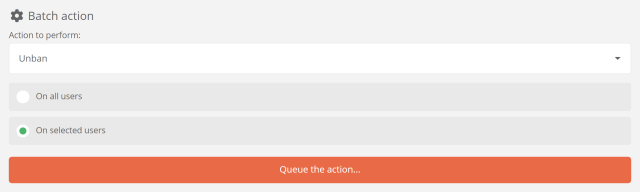
- Click the
«Queue the action»button to process the changes.
Deciding when bans, blocks or flags should be performed
The batch tool lets you decide when it performs actions on the users in your list. You can choose to disable the batch tool while you are live on Twitch and have it perform actions only while you are offline. This is useful if you want to avoid filling your logs with messages while you are live.
Actions can also be paused and resumed at any time, allowing you to temporarily stop the batch tool from processing your list of users.
To configure when the batch tool performs its actions, follow these steps:
- Open the
«Tools»menu from the main menu, then select«Batch tool». - Toggle the
«queue status»button to pause or resume the batch tool, or toggle the«offline only»button to allow the batch tool to perform actions only while you are offline.

Importing large lists of Twitch users to ban, block or flag
Large lists of Twitch users can be imported into the batch tool from a file, a link, or by pasting them in directly. This allows you to quickly add large numbers of users to your list without having to manually type or select each username.
The batch tool supports exported files from the batch tool itself, as well as plain text files containing usernames or user-IDs. This means you can import lists of users that were not created by the batch tool.
This is useful if you want to import a list of users generated by a different tool.
Specifically, the batch tool supports text files with:
- Twitch usernames, with one username per line.
- Twitch user-IDs, with one user-ID per line.
- Twitch chat commands like
«/ban»,«/unban»,«/block», and«/unblock»followed by a username, with one command per line.
Using a link to import a large list of Twitch users
Links can be used to directly import large lists of Twitch users into the batch tool. This allows you to easily add users that someone else has shared with you.
Follow these steps to import to the batch tool from a link:
- Open the link in your web browser. This will take you to Moobot's import page.
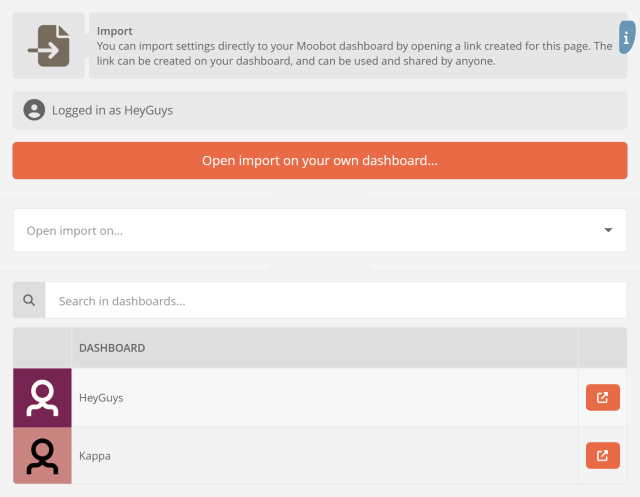
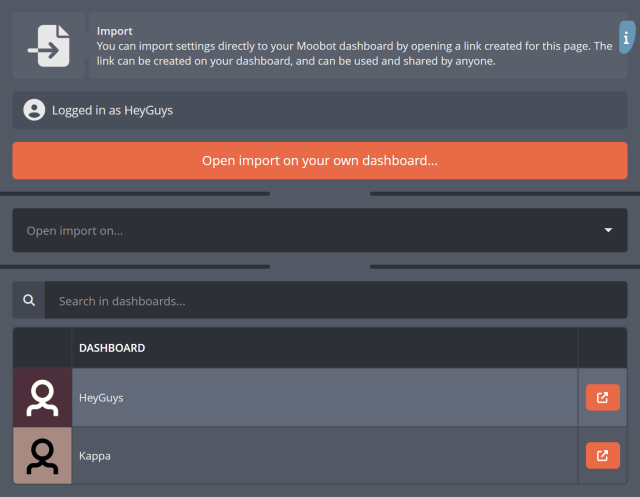
- Choose the dashboard where you want to import the list of users. You can do this by clicking the button to open the import on your own dashboard, selecting a dashboard from the dropdown menu, or choosing one from the list of dashboards you can access.
- Once you have navigated to the desired dashboard, click
«Open import»in the import prompt.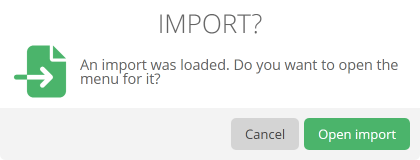
- The batch tool will open with the list of users loaded. You can review the users and make any necessary changes before proceeding.
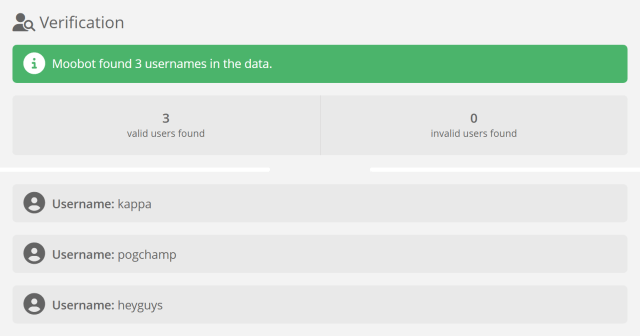
- Confirm that the users were imported correctly by checking the
«The users were found correctly»box.

- Click the
«Import»button at the bottom of the menu to add the users to a new list in the batch tool. - Proceed with the next steps to create and process your list of Twitch users.